General Questions
What do I need to get started?
To enjoy the best experience with Cloud9FreedomTV, you’ll need:
- A stable, high-speed internet connection: We recommend speeds of at least 100 Mbps over Wi-Fi.
- A TV with HDMI compatibility or certain models of SmartTVs.
- A compatible streaming device: You can use any Android device, a computer, or one of the following supported devices:
- NVIDIA – SHIELD Android TV Pro – 16GB – 4K HDR Streaming Media Player 🔗: This is the ideal device for the ultimate streaming experience.
- Onn. Google TV 4K Pro Streaming Device (New, 2024) 🔗: The most popular device among our users for smooth and high-quality streaming.
- Amazon Fire TV Stick 4K Max 🔗: A great option for an easy and reliable streaming experience.
- iPhone, iPad: Also supported as compatible devices for streaming.
Note: For optimal viewing quality, a stable internet connection is crucial. Hotspots or cell phone data connections may not be sufficient to support streaming without interruptions.
Absolutely! We offer a 12-hour free trial that gives you FULL access to all of our features. Take a look around and experience what we have to offer. Once you’re ready to continue, you can choose your subscription here or contact us directly for assistance!
Explore Our Massive Content Library
We offer an unbeatable selection of global entertainment. Enjoy access to over
30,000+ live TV channels and more than
80,000 on-demand movies and TV shows—covering everything from sports, news, and local networks to international favorites, all in one app.
Our content library is updated daily, so the channel list may change frequently and might not always reflect the most up-to-date offerings.
👉 To view a sample of what we offer, check out our
Channel Lineup.
With Cloud9 FreedomTV, you can enjoy streaming on multiple devices at the same time! Each subscription plan allows you to watch on up to 5 different devices simultaneously, so everyone in your household can enjoy their favorite shows and movies on their own screens.
Absolutely! With Cloud9 FreedomTV, you can watch your favorite shows and channels wherever you are, as long as you have an internet connection. Our service is compatible with a variety of devices, including:
- Smartphones
- Nvidia Shield Pro
- onn. Google TV 4K Pro Streaming Device
- Amazon Fire Stick
- Tablets
- Smart TVs (select models)
- Computers
Note: A stable Wi-Fi connection is required for the best streaming experience. Hotspots or cell data connections may not provide optimal streaming quality.
.
Enjoy FREE Streaming Service Indefinitely with Our 3 & FREE Program!
With the 3 & FREE Program, you can get your Cloud9 FreedomTV Streaming service completely FREE every month! Here’s how it works:
- Refer 3 People: Invite 3 friends, family members, or anyone you know to subscribe to Cloud9 FreedomTV. They must maintain an active monthly subscription.
- Notify Us: Once your 3 referrals have subscribed, contact us and we’ll update your account.
- Enjoy Free Service: After verification, your subscription will automatically renew each month for free as long as your referrals remain active.
Don’t wait—start sharing the Cloud9 FreedomTV experience today and enjoy unlimited streaming for FREE! 🎉
Yes, we take your privacy very seriously. All connections between you and our servers are fully encrypted, ensuring that your activities remain private and secure.
🕒 What Are Your Hours of Operation?
Cloud9 FreedomTV Support Hours:
- Monday–Saturday: 8:00 AM – 7:00 PM (PST)
- Sunday: 10:00 AM – 2:00 PM (PST)
Have questions or need assistance?
Our team is happy to help during these hours — just send us a message on WhatsApp and be sure to include your order number!
Orders placed after hours will be processed the following day.
How to get a Free Trial
• Click the “Free Trial” tab in the header of our website, and we’ll email you instructions to install our app along with your login credentials.
• You can also request your free trial by contacting our support team here on WhatsApp.
Your free trial lasts exactly 12 hours from the time we provide your login credentials.
Installing our App
Firestick & onn. Google 4K – Installation Instructions:
Install our App
1.) From the Firestick Home Screen, scroll right and select Settings.

2.) Select My Fire TV.

3.) Scroll down and Choose Developer Options.

4.) Turn ON both:
- ADB Debugging
- Apps from Unknown Sources
.


🚫 Don’t see Developer Options?
Go to Settings > My Fire TV > About
Select the first option repeatedly (around 7 times) until you see a message:
“No need, you are already a developer.”
Now return and access Developer Options and make sure ADB Debugging and Unknown Sources are both turned On.
5.) Return to the Home Screen and hover over the Search icon. (If you already have the “Downloader” app installed skip to step 12).

6.) Type in Downloader.

7.) Select the Downloader app.

8.) Select Download

9.) Select Open

10.) Select Allow when prompted.

11.) Select OK

12.) Enter code: 1871618 and then select the GO button.
13.) If you entered the code correctly the download will begin. Wait until the download is finished, then select Install.
14.) Then select Open.
15.) When prompted with “Allow Cloud9FreedomTV to access photos, media, and files on your device?”, select “ALLOW”.
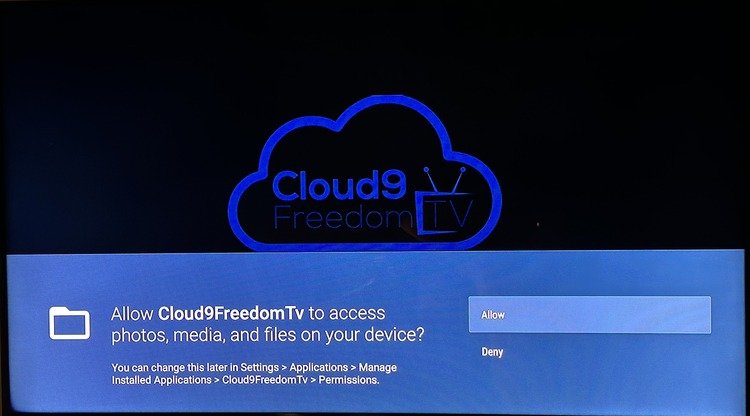
16.) Select “Add Playlist”
Important: Make sure the “Activation Code” option is unchecked so you can manually enter your login credentials.
🔑 Sign In
• Enter Username
• Enter Password
After entering your username and password, tap “Sign In” to access your Cloud9 FreedomTV account!
📱 How to Install on an Apple iOS Device
(Using Smarters Player Lite or IBO Pro Player)
You can install Cloud9 FreedomTV using either Smarters Player Lite or IBO Pro Player. Follow the steps below:
🔹 Option 1: Using Smarters Player Lite
- Download Smarters Player Lite from the App Store.
- Open the app and select “ADD YOUR PLAYLIST (VIA XC API)”.
- Then, enter the following details:
- Any name: Enter any name of your choice
- Username: Use your Cloud9 FreedomTV credentials
- Password: Use your Cloud9 FreedomTV credentials
- Server Name: Request it from our Customer Support team
- Select “Add User”
✅ You’re all set! Enjoy streaming with Cloud9 FreedomTV!
🔹 Option 2: Using IBO Pro Player (Alternative)
- Download IBO Pro Player from the App Store.
- Open the app and select “ADD YOUR PLAYLIST (VIA XC API)”.
- Enter your Cloud9 FreedomTV login credentials.
- Enter the Server URL provided by Cloud9 FreedomTV support.
- Click “Add User”
✅ Enjoy streaming with IBO Pro Player!
📲 How to Install on an Android Device
(Using Cloud9 FreedomTV App or IBO Pro Player)
You can install Cloud9 FreedomTV using the Cloud9 FreedomTV App or use IBO Pro Player as an alternative.
🔹 Option 1: Using Cloud9 FreedomTV App
- Download the App
– On your Android device or Firestick, open any web browser
– Go to: http://aftv.news/1871618
– The APK file will begin downloading automatically - Install the App
– If prompted, allow installation from unknown sources
– Open the downloaded file and complete the installation - Log In & Start Streaming
– Open the Cloud9 FreedomTV app
– Enter your Cloud9 FreedomTV login credentials
– Select Sign In and enjoy your content!
🔹 Option 2: Using IBO Pro Player (Alternative)
- Open Google Play Store on your Android device
- Search for “IBO Pro Player” and install the app
- Open the app and select “ADD YOUR PLAYLIST (VIA XC API)”
- Enter your Cloud9 FreedomTV login credentials
- Enter the Server URL provided by Cloud9 FreedomTV support
- Click “Add User”
✅ Enjoy watching your favorite content on IBO Pro Player!
If you have any questions or run into issues, feel free to reach out to our support team — we’re here to help! 💬
📺 IPTV Smarters Pro – Installation & Setup Guide
Step 1: Open the Downloader App
If the Downloader app is already installed on your device, open it from your Home Screen.
Step 2: Enter the IPTV Smarters Code
In the URL field, type 815502 and press Go.
Wait for IPTV Smarters Pro to finish downloading.
Step 3: Install the App
Once downloaded, select Install.
After installation is complete, select Open.
Step 4: Log In Using XC API Setup
Select “Add Your Playlist (via XC API)” when prompted.
Then enter the following details:
- Name: Enter any name you’d like (e.g. Cloud9TV).
- Username: Your Cloud9 FreedomTV username.
- Password: Your Cloud9 FreedomTV password.
- Server URL: Please contact our support team via
WhatsApp to get your personalized server URL.
Step 5: Start Watching
Click Add User, then choose between Live TV, Movies, or Series to start enjoying your content.
Follow these steps to set up Cloud9 FreedomTV using the IBO Pro Player on your Apple or Roku device:
For Apple Devices (iPhone, iPad, Apple TV)
- Open the App Store on your Apple device.
- Search for “IBO Pro Player” and install the app.
- Launch the app and select “Login with Xtream Codes API.”
- Enter the following details:
- Any Name: Cloud9 FreedomTV
- Username: (provided by support)
- Password: (provided by support)
- Server/Host URL: (provided by support)
- Tap Add User to log in and start streaming.
For Roku Devices (via IBO Player Pro)
Note: Roku does not directly support IPTV apps, but you can use IBO Player Pro with the following method:
- On your Roku device, install IBO Player Pro from the Roku Channel Store.
- Open the app and write down the Device ID and Mac Address shown on screen.
- On a phone or computer, visit: https://iboiptv.com/activate
- Enter your Device ID and Mac Address to activate the app.
- Under Xtream Codes login, enter:
- Any Name: Cloud9 FreedomTV
- Username: (provided by support)
- Password: (provided by support)
- Server URL: (provided by support)
- Once saved, your playlist will load on the Roku automatically.
Need help finding your login details? Contact us via WhatsApp or email at info@cloud9freedomtv.com.
- Download the IPTV Smarters Pro app from your TV’s App Store.
- Open the app and select “LOGIN WITH XTREAM CODES API”.
Enter the following details:
- Any Name: Choose any name you’d like.
- Username: Enter your Cloud9 FreedomTV credentials.
- Password: Enter your Cloud9 FreedomTV credentials.
- Host URL: Request it from our Customer Support team.
- Select “Add User”.
- Go to LIVE TV, MOVIES & SERIES to download the latest updates for each category.
Browse and enjoy! Select any category and start watching your favorite channels.
How to Install Cloud9 FreedomTV on Windows or macOS (Using IPTV Smarters Pro)
Use the IPTV Smarters Pro desktop app to watch Cloud9 FreedomTV on your computer.
💻 Download for Windows: https://www.iptvsmarters.com/download/?download=windows_app
🍎 Download for macOS: https://www.iptvsmarters.com/download/?download=mac
Installation & Setup
- Install the app you downloaded above.
- Open IPTV Smarters Pro and choose “Player API”
- Enter the following details exactly:
- Any Name: Cloud9 FreedomTV
- Username: (Provided in your welcome email)
- Password: (Provided in your welcome email)
- Server URL: (Provided in your welcome email)
- Click Add Playlist to finish. Playlist will load in a moment.
Notes & Tips
- PC/Mac only: Downloader codes (like
1871618) are for Fire TV / Android devices and won’t work on computers. - One login = one device: Using the same login on multiple devices at once will cause interruptions.
- Recommended internet speed: 100 Mbps or higher for best performance.
- macOS security: If macOS blocks the app, go to System Settings > Privacy & Security and click Open Anyway.
Need help? Message us on WhatsApp:
+1 (858) 753-9418.
Subscription
- Go to our Subscription Page.
- Choose your preferred subscription plan and click Subscribe.
- Enter your details, including a valid phone number and email, to receive your login credentials and installation instructions.
- Download and install the app, log in with your credentials, and enjoy streaming!
No contracts, no hidden fees! Simply renew your subscription on the monthly anniversary of your signup date. You’re free to cancel anytime.
📌 Important: Device Limit Policy for Subscriptions
When purchasing or renewing your Cloud9 FreedomTV subscription, please make sure to carefully select the correct number of devices you wish to activate.
We are unable to modify or upgrade the number of devices on an active subscription once it has been processed. If you later request to add more devices, an additional setup fee will apply based on your plan.
💰 Additional Device Fees (Per Device):
- 1 Month Plan: $15
- 3 Month Plan: $20
- 6 Month Plan: $25
- 12 Month Plan: $30
To avoid extra charges, please double-check your selection at checkout or during renewal to ensure it includes the total number of devices you wish to use.
If you have any questions, feel free to reach out to our Customer Support via WhatsApp.
Renewing is easy! Just follow the same steps as when you first subscribed. Our app will notify you when your subscription is nearing expiration. Place a new order, and your account will be extended according to the subscription plan you select.
We’ll also send an email and a reminder through WhatsApp before your subscription expires with a link to renew.
No, we don’t bill you automatically. To renew your service, simply return to our website when your subscription is nearing expiration and place a new order. Your account will be extended based on the plan you choose.
We’ll also send you an email and SMS reminder before your subscription expires, including a link to make renewal easy.
Payments & Refunds
We accept the following payment options:
- MasterCard
- Visa
- American Express
- Discover
- Cash App
- Zelle
- Venmo
- Bitcoin
Choose the option that works best for you!
No, there’s no credit check or contract required. Just enjoy our affordable, pay-as-you-go TV service with no hassle!
Yes! We offer a 3-Day Money-Back Guarantee.
We’re confident in the quality of our service, but if for any reason you’re not fully satisfied, you can request a refund. Just send us an email within 3 days of your purchase date, and we’ll process a full refund, no questions asked.
Troubleshooting
Q: How do I check my internet speed & quality?
To ensure a smooth streaming experience, we recommend using the Analiti Speed Test app on your Firestick. Here’s how to install and run it:
1. Using the Analiti Speed Test App on Firestick:
- From the Firestick Home Screen, go to the Search (magnifying glass) icon.
- Type “Analiti Speed Test” and select it from the suggestions.
- Choose the Analiti app in the search results and click Download or Install.
- Once installed, open the app and run a speed test.
📌 Important: Your Download speed should be at least 100 Mbps for the best performance with Cloud9 FreedomTV. If your speed is lower, you may experience buffering or freezing.
🔧 Troubleshooting Login Issues with the Cloud9 FreedomTV App
With our new Cloud9 FreedomTV app, please keep the following in mind:
- 👉 Use a different set of login credentials for each device.
- Each device is linked to a single login, so make sure to enter the exact credentials we provided to you via email.
⚠️ Important: Reusing the same login credentials on multiple devices at the same time can cause streaming issues, buffering, or unexpected logouts.
Need help finding your login info? Just send us a message via WhatsApp and we’ll be happy to resend it to you.
If you’ve mistakenly used the same login on more than one device, please send us a message via WhatsApp. We’ll reset the account and issue new login credentials to get you back up and running smoothly.
Troubleshooting Firewall Issues for Cloud9 FreedomTV
If you’re experiencing buffering, connectivity issues, or trouble accessing Cloud9 FreedomTV, your router’s firewall may be blocking the connection. Follow these step-by-step guides to disable the firewall on your router for smoother streaming.
Disable Firewall on AT&T (2Wire Gateway)
- Access the Router: Open your browser and go to http://homeportal/setup. Ensure your device is connected to your high-speed internet through your 2Wire Gateway or Modem.
- View Firewall Status: Look for the Firewall heading on the right side of the screen to check its current status.
- Access Firewall Settings: Click on the Firewall icons (which look like locks) or select the View Firewall Status link.
- Disable the Firewall: Click the Firewall Settings link in the navigation bar.
- Allow All Applications: Select the option Allow all applications (DMZplus mode) to disable the firewall.
- Confirm: Click the Done button to save your settings.
Disable Firewall on Xfinity Routers
- Login to Your Router: Enter your router’s IP address into your browser.
- Authenticate: Enter your router’s password when prompted.
- Go to Advanced Settings: Locate and select the Advanced Settings option.
- Find Firewall Options: Navigate to and select the Firewall option.
- Disable the Firewall: Click Disable.
- Confirm: Select OK when prompted to save your changes.
Disable Firewall on Verizon Routers
- Access the Router’s Interface: Open a web browser and enter
http://192.168.1.1in the address bar. - Login: Use your router’s username and password, typically found on a sticker on the router.
- Navigate to Firewall Settings: Go to the Advanced Settings or Firewall section.
- Modify Firewall Settings: Adjust the firewall level to “disable.”
- Save and Exit: Save the changes and exit the interface.
📱 Disable Firewall Using AT&T Smart Home Manager App
- Download the App: Install the AT&T Smart Home Manager App from the App Store or Google Play Store.
- Log In: Use your AT&T account credentials to sign in.
- Access ActiveArmor Settings: Tap the Settings icon (gear symbol) at the top right corner, then select ActiveArmor.
- Disable ActiveArmor: Toggle the switch to turn off ActiveArmor.
Note: You can reactivate ActiveArmor anytime using the same steps.
🔎 Additional Tips for Smooth Streaming
- Firewall Risk Awareness: While disabling your firewall can enhance streaming performance, it may also expose your network to security threats. Re-enable it once troubleshooting is complete.
- Use a VPN: Protect your privacy by using a secure VPN like SurfShark. It enhances your security while bypassing ISP throttling.
- Contact Support: If you continue facing issues, reach out to our friendly support team for further assistance.
🛠️ Having Issues with Lag, Freezing, or Buffering?
No worries! Follow these quick steps to get your Cloud9 FreedomTV streaming smoothly again:
🚨 Step 1: Restart Your Equipment
This solves 90% of issues!
- Router: Turn it off, unplug it from the wall, and wait at least 5 full minutes before plugging it back in and turning it on. (Less than 5 minutes won’t reset it fully.)
- Streaming Device or Smart TV: Turn it off, unplug it for 1 minute, then plug it back in and power it on.
📶 Step 2: Check Your Internet & Connection Type
- Use an Ethernet cable if available — it’s faster and more stable than Wi-Fi.
- If using Wi-Fi, make sure your speed is at least 100 Mbps.
- Avoid using hotspots or mobile data — they often cause buffering.
✅ Recommended Devices:
- Onn Google TV 4K
- NVIDIA Shield Pro
- Amazon Firestick 4K Max
⚠️ Older or budget devices may struggle with high-quality streams.
🔁 Step 3: Properly Exit the App
Always exit the app correctly to avoid connection issues.
On FireStick:
- Go to Settings > Applications > Manage Installed Applications
- Select Cloud9 FreedomTV
- Click Force Stop
On onn. Google TV:
- Go to Settings > Apps > See All Apps
- Find and select Cloud9 FreedomTV
- Click Force Stop
❗ Important: Never just press the Home button. That keeps the app running in the background and may cause issues.
🔒 Step 4: Check Your Device Limit
- Your plan supports up to 5 devices (depending on your subscription).
- Make sure you’re using only one set of login credentials per device.
- If multiple devices use the same login at the same time, it can cause connection issues and may disconnect your stream.
- To prevent problems, fully close the app on any device you’re not actively using.
🌐 Step 5: Use a VPN (If Buffering Still Happens)
- Some Internet providers slow down video streaming. A VPN helps fix this.
- We recommend SurfShark VPN — just $2.49/month for smooth, private streaming.
- A VPN is often more reliable than switching internet providers.
🤝 Need More Help?
- Try restarting your device and router again.
- Contact us via Customer Support Chat to get your connection re-synced.
- Or call us directly: (800) 340-0298
We’re here to make sure you enjoy a seamless streaming experience with Cloud9 FreedomTV!
📺 Troubleshooting App Issues on Fire TV or onn. Google TV 4K
If the Cloud9 FreedomTV or Smarters Pro app isn’t loading or working correctly, follow these simple steps to fix it:
🔧 Step 1: Clear Cache & Restart
On Fire TV:
- Go to your Fire TV Home Screen and open Settings.
- Select Applications > Manage Installed Applications.
- Choose either Cloud9 FreedomTV or Smarters Pro.
- Click on Clear Cache.
- Then, click Force Stop.
- Restart your Fire TV device.
If the issue isn’t fixed, go to Step 2.
On onn. Google TV 4K:
- Go to your Home Screen, then open Settings.
- Select Apps > See All Apps.
- Choose either Cloud9 FreedomTV or Smarters Pro.
- Click on Clear Cache.
- Then, select Force Stop.
- Restart your onn. Google TV 4K device.
Still having issues? Continue to Step 2.
🧹 Step 2: Clear Data & Restart
On Fire TV:
- Go to Settings > Applications > Manage Installed Applications.
- Select the app and tap Clear Data (repeat this 3–6 times to fully clear it).
- Tap Force Stop again.
- Restart your Fire TV device.
- Open the app and log in again.
On onn. Google TV 4K:
- Go to Settings > Apps > See All Apps.
- Choose the app and tap Clear Data (repeat 3–6 times).
- Tap Force Stop again.
- Restart your device.
- Open the app and log back in.
If none of the above works, uninstall and reinstall the app.
If channels, movies, or series are missing—or before a major PPV event—use RELOAD to refresh your media links. This ensures you have the latest working streams.
🔄 How to RELOAD
- Open the Cloud9 FreedomTV app.
- On the main home screen, go to the top-right corner
(some versions show it bottom-right). - Select RELOAD.
- Wait for the update to finish (a few seconds).
- Reopen the channel, movie, or series you want to watch.
✅ Best Practices
- Before PPV: Run RELOAD 10–15 minutes prior to the event to fetch the newest stream links.
- If a specific item still doesn’t appear, RELOAD once more, then fully close and reopen the app.
- For smooth playback, use an internet speed of at least 100 Mbps.
Still seeing freezing or lag? See our guide:
How to Fix Freezing, Buffering, or Streaming Lag.
How to Install and Use the Background Apps & Process List to Free up RAM on your Device (Free)
Best for: Closing apps running in the background to free up RAM and prevent buffering.
Before You Begin: We recommend doing a quick cleanup on your device:
- Uninstall any apps you don’t use — these may still be running in the background and slowing things down.
- Make sure to remove all old or previous versions of our app to avoid conflicts and unnecessary resource use.
- Force stop any running apps you’re not actively using by going to Settings > Applications > Manage Installed Applications, selecting the app, then tapping Force Stop.
Why it’s Useful: Many apps keep running even when you’re not using them, slowing down your device. This app closes them with a simple click, freeing up memory for smoother streaming.
✅ How to Install:
For FireStick:
– Available directly from the Amazon Appstore.
– Search for “Background Apps & Process List” and install.
For Onn 4K:
– Available on the Google Play Store.
– Search for “Background Apps & Process List” and install.
💡 How to Use:
- Open the App.
- Click “Close All Apps” to bring up running apps one by one.
- Confirm “Force Stop” for each app.
- Done! Your RAM is now cleared for better performance.
If you have any further questions or issues, feel free to reach out for support!
🔧 Firestick Optimization Tips (Speed, Storage & Privacy)
1. Turn Off Notifications & Auto Updates
Go to Settings > Applications > Appstore
Turn off:
• Notifications
• Automatic Updates
• Turn ON: Hide Cloud Apps
⚠ Tip: Make sure your apps are updated manually when needed.
2. Boost Speed by Disabling Data Collection
Go to Settings > Preferences
Turn off:
• Device Usage Data
• Collect App Data Usage
• Interest-Based Ads
Go to Settings > Preferences > Featured Content
Turn off both options.
Optional:
• Prime Photos → Turn off Access & Guest Connections
• Game Circle > Whispersync → Turn OFF
3. Free Up Space
Uninstall unused apps to keep your Firestick running smoothly.
Optional: Use a trusted third-party cleaning app to remove junk files (avoid unknown or shady apps).
4. Disable Unused Amazon Services
If you’re not using Prime Photos or Whispersync, turn them off to save resources.
🔐 Is a VPN Required?
Most users don’t need a VPN, but you might consider using one if your Internet Service Provider (ISP) is blocking or throttling your streaming speeds.
🚀 Why Use a VPN?
- ✅ Stabilizes and Enhances Streaming Speed
- 🔒 256-bit SSL Encryption for complete privacy
- 🚫 Bypasses ISP Throttling (especially with providers like Verizon or AT&T)
- 🔓 Unlocks apps or websites that may be blocked by your ISP
- 🛡️ Masks your identity so you can browse and stream with freedom
Many ISPs limit streaming quality to promote their own cable or VOD services. A VPN helps avoid this interference while keeping your data private.
🌱 Not Sure? Try a Free VPN Trial!
You can start with a free VPN plan or a trial from a premium provider to test the difference. If you notice improved performance, you’ll know it’s worth upgrading.
🛠️ How to Set Up ProtonVPN (Free Version for Firestick)
If you’re experiencing channel issues, your ISP may be blocking access to our servers. Installing ProtonVPN on your Firestick can resolve this:
✅ Step-by-Step Instructions (No Downloader Needed)
- Create a Free ProtonVPN Account
– On your phone or computer, go to https://protonvpn.com
– Scroll down and click “Get ProtonVPN Free”
– Sign up for the Proton Free plan and confirm your email - Install ProtonVPN on Firestick
– On your Firestick Home screen, go to Find > Search
– Type “ProtonVPN”
– Select the app and click Download or Get
– Wait for the installation to complete - Log In & Connect
– Open the ProtonVPN app on your Firestick
– Log in using your ProtonVPN credentials
– Choose a Free Server closest to your location (e.g., Los Angeles, San Diego)
– Tap Connect - Reopen Cloud9 FreedomTV
– Once ProtonVPN is connected, return to the Cloud9 FreedomTV app and try accessing your channels again
✨ Recommended: SurfShark VPN (Premium)
For top performance and speed, we recommend SurfShark VPN. It’s fast, secure, and just $2.49/month.
Need More Help? We’re Here For You!
Didn’t find the answer you were looking for? Our friendly support team is available during business hours to help with:
- General Inquiries
- Free Trial Setup
- Account Activation
Reach out to us via Live Chat or email us at info@cloud9freedomtv.com We typically respond quickly during our support hours:
🕒 Support Hours:
Monday-Saturday: 8 AM – 7 PM PST.
Sunday: 10 AM – 2 PM PST.

